Control your monitors from the menu bar
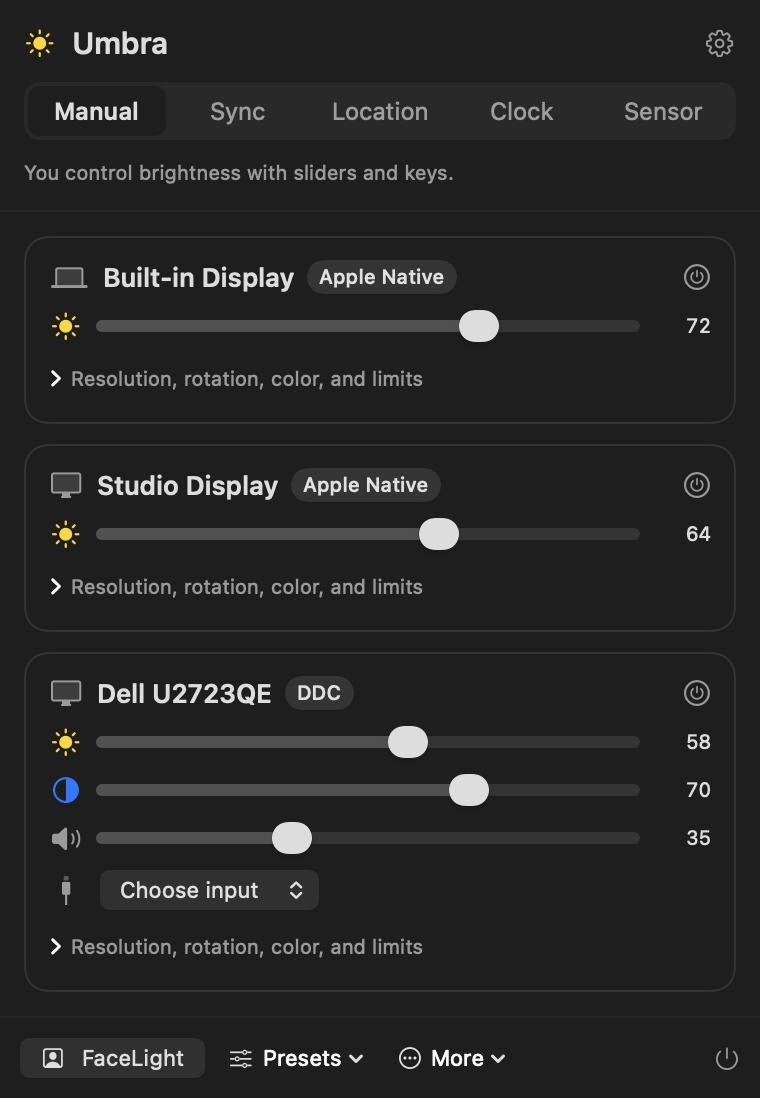
Umbra changes the brightness, volume, and input of every screen plugged into your Mac. No more reaching around the back of your monitor for those tiny buttons. It's free, open source, and it never asks you to sign up.
Download for MacUmbra is a Mac app. Open this page on your Mac to download it.
Your download has started. Here's what to do next.
brew install --cask jordancampbelldesign/tap/umbra
Try the brightness slider
This is the same slider you get in Umbra. Drag it and watch the desk below get darker, just like your real screens would.
See it in 18 seconds
Brightness, Night Mode, turning a screen off, and Away mode, all on one desk with three screens.
What Umbra does
Everything your monitor's own menu can do, plus a few things it can't.
Every screen, one menu
Works with your Mac's own screen, Apple displays, and most other monitors. Umbra talks to monitors through the cable, using a standard called DDC.
Night Mode
One click dims every screen and makes the colors warmer. Click again and everything goes back to how it was.
Darker than 0%
Late at night, go below the lowest setting your screen allows. Handy when even "lowest" is too bright.
Turn a screen off
BlackOut turns off a screen you're not using, without unplugging it. Your windows move to your other screens, and USB and charging keep working.
Away mode
When you step away, your screens fade to black, but your Mac stays awake. Downloads and long jobs keep running. Move the mouse and everything comes back.
Follows the light
Umbra can keep your monitors matched to your laptop screen, to a daily schedule, or to sunrise and sunset where you live.
Siri and shortcuts
Say "Turn on Night Mode in Umbra." You can also use keyboard shortcuts, Control Center, or the Shortcuts app.
Volume and input
Change your monitor's speaker volume, or switch it between your Mac and a game console, without touching the monitor.
Private by default
Umbra only goes online to check for updates. No account, no ads, and no tracking.
How to install
It takes about a minute.
Click Download for Mac. The file is about 1 MB.
Open the downloaded file, then drag Umbra into the Applications folder.
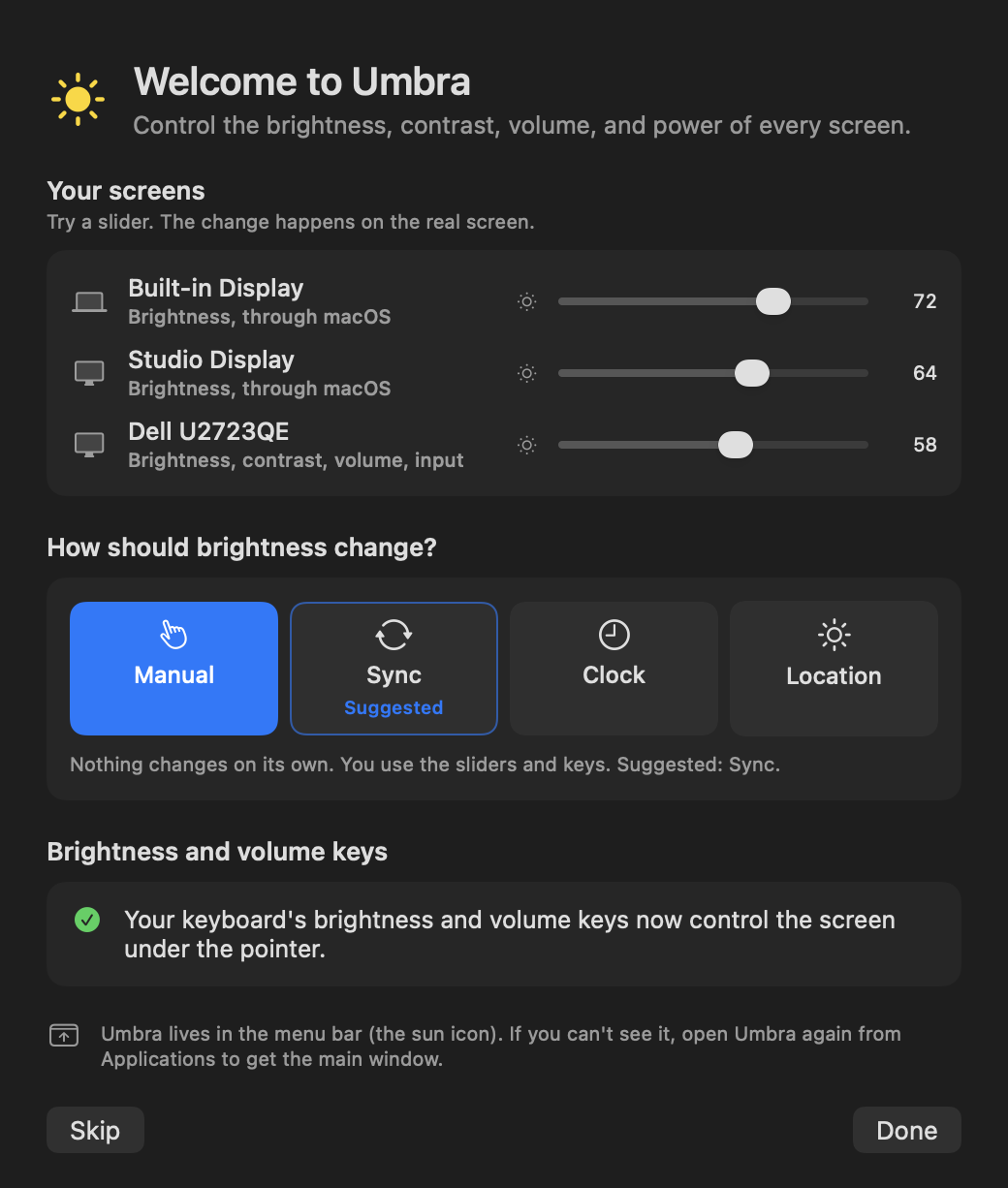
Open Umbra from your Applications folder. A small welcome window finds your screens and suggests a setup.
If macOS says it can't open Umbra
Apple checks apps from developers who pay $99 a year. Umbra is a free project and skips that check, so macOS blocks it the first time. To allow it:
Click Done on the warning.
Open System Settings, then click Privacy & Security.
Scroll down and click Open Anyway next to the Umbra message.
Enter your Mac password, then click Open.
You only do this once. After that, Umbra updates itself.
If something goes wrong
Fixes for the problems people run into most. You can also ask a question.
There's no Open Anyway button
The button only shows for about an hour after macOS blocks Umbra. Open Umbra from your Applications folder again, click Done, then go back to Privacy & Security and scroll down.
macOS says Umbra "is damaged and can't be opened"
This usually means the download didn't finish. Move Umbra to the Trash, download it again, and drag the new copy to Applications.
If you still see it, open the Terminal app, paste this line, and press Return. It tells macOS you downloaded Umbra on purpose.
xattr -dr com.apple.quarantine /Applications/Umbra.appI can't find Umbra in the menu bar
On MacBooks with a notch, the menu bar can run out of room and hide icons behind it. Open Umbra from your Applications folder again, and its main window opens instead. You can also quit a few other menu bar apps to make room.
My monitor's brightness doesn't change
Some monitors, docks, and adapters don't pass brightness commands through the cable. Umbra usually notices and offers to dim the picture itself. To switch by hand, open Umbra's Settings, click Displays, choose the monitor, and set Method to Gamma (software).
If the monitor is on a dock or adapter, try plugging it straight into your Mac.
My monitors change brightness on their own
In Sync mode, your monitors copy the brightness of your Mac's built-in screen. If macOS Automatically adjust brightness is on, the light sensor changes that screen, and your monitors follow it.
To stop this, open Umbra's Settings, click Modes, and turn on Monitors ignore auto-brightness. Your monitors then follow only the changes you make with Umbra or the brightness keys. You can also turn off Automatically adjust brightness in System Settings › Displays.
The brightness keys don't change my monitor
The keys need Accessibility permission. Open System Settings, click Privacy & Security, then Accessibility, and turn on Umbra. If it's already on but the keys still don't work, turn it off and on again.
A screen went black and won't come back
Press Control Command 7 to turn every screen back on. If Away mode turned them off, move the mouse or press any key.
I can't replace Umbra with a new version
Quit Umbra first: open its menu and click the power button at the bottom. Then drag the new copy to Applications and click Replace. Umbra normally updates itself, so you only need this if you download it again by hand.
Does it work on an Intel Mac or an older macOS?
No. Umbra needs a Mac with Apple Silicon (M1 or newer) and macOS 14 Sonoma or later. To check yours, open the Apple menu and choose About This Mac. Look for "Chip: Apple M" and a macOS version of 14 or higher.
None of these fixed it
In Umbra, open the menu, click More, then Report a problem with a monitor. It fills in your Mac and monitor details for you. Sending it needs a free GitHub account.
Questions
Is it really free?
Yes. There's no paid version, no trial, and no account. Umbra is open source, so anyone can read the code and check what it does.
Will it work with my monitor?
Most monitors from the last ten years let the Mac change their brightness through the cable. For the ones that don't, Umbra notices and dims the picture itself instead. You need a Mac with Apple Silicon (M1 or newer) and macOS 14 or later.
Is it safe?
Umbra doesn't collect your data, and it only goes online to check for updates. Every update is signed, and Umbra checks the signature before it installs anything. The full source code is public.
Why does it need permission for the keyboard?
So your Mac's brightness and volume keys can control your other monitors too. Umbra explains each permission before macOS asks, and you can skip any of them.
How do updates work?
Umbra checks once a day and asks before it installs a new version. You don't need to come back to this page.
How is it different from Lunar?
Lunar is a great app with some features behind a paid plan. Umbra covers the same features for free. It's a separate project and isn't made by Lunar's author.
Something isn't working. What do I do?
Check If something goes wrong above. It covers the most common problems.
Free and open source
All of Umbra's code is public on GitHub. Anyone can read it to see exactly what the app does, report a bug, or suggest a fix. It uses the MIT license, so you can even build your own version.
If Umbra helps you, a star on GitHub helps other people find it.